
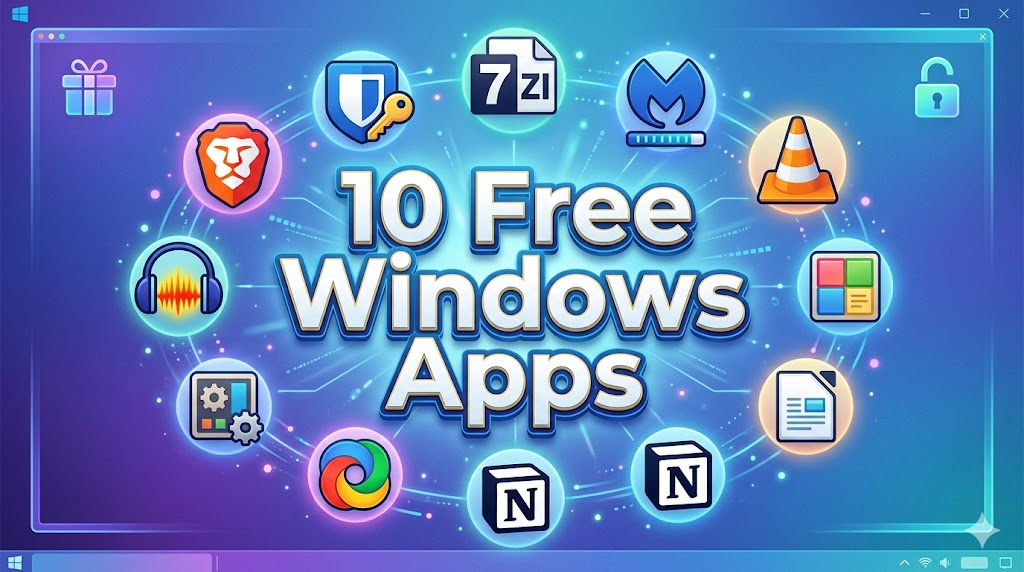
Every time someone buys a new Windows PC or does a fresh install, they end up with a machine that works fine but is not yet optimized for real productivity, real privacy, or real enjoyment with Windows Apps to Boost Efficiency. The apps that come pre-installed the basic browser, the default media player, the built-in tools are adequate at best and frustrating at worst.
The good news is that some of the best software ever written for Windows is completely free. Not free trials. Not limited versions with paywalled features. Genuinely, fully free tools that professionals, developers, students, and everyday users have been relying on for years.
I have been using Windows as my primary operating system for most of my life, and over that time I have developed a personal list of apps that go on every machine I set up for myself or for anyone I help. These are tools that solve real problems, save real time, and make the Windows experience significantly better.
In this article, I am going to walk you through ten of the best free Windows apps you should install in 2026. For each one, I will explain exactly what it does, why it is better than the default alternative, and how to get it. No filler, no vague praise just practical recommendations from real use.
Let’s get started.
1. Brave Browser
Category: Web Browser Download: brave.com Why it beats the default: Chrome’s memory usage, Edge’s Microsoft integrations, and both browsers’ advertising tracking are real problems that Brave solves by default.
Brave is a Chromium-based browser meaning it supports all Chrome extensions and feels instantly familiar but with one fundamental difference: it blocks ads and trackers natively, with no extension required. The result is a browser that loads pages faster (fewer resources to download), uses less memory, and shares significantly less of your behavior with advertisers.
In 2026, Brave has matured into one of the most polished browsers available on any platform. The built-in ad blocker is aggressive but configurable. There is a built-in Tor-powered private browsing mode for when you need extra anonymity. And the performance on most websites is noticeably snappier than Chrome on the same hardware.
For most Windows users, switching to Brave from Chrome or Edge requires zero adjustment. Your bookmarks, extensions, and muscle memory all transfer immediately. And you immediately stop being tracked by hundreds of advertising networks every time you open a new tab.
Who should install it: Everyone. Seriously. Even if you keep another browser as a backup, Brave should be your daily driver.
2. Bitwarden
Category: Password Manager Download: bitwarden.com Why it beats the default: Windows has no built-in password manager worth relying on. Browser-saved passwords are convenient but insecure.
We covered Bitwarden in our password managers article, and it earns its spot on this list too. It is the best free password manager available in 2026, and installing it on your Windows PC should be one of the first things you do on any fresh setup.
The Windows desktop app gives you full access to your encrypted vault. The browser extension available for Brave, Chrome, Firefox, and Edge handles autofill seamlessly. And because Bitwarden syncs across devices, the passwords you save on your PC are instantly available on your phone too.
If you are currently saving passwords in your browser or in a notes file, you are not taking your security seriously. Bitwarden fixes that, permanently, for free.
Who should install it: Everyone who uses passwords which is everyone.
3. VLC Media Player
Category: Media Player Download: videolan.org Why it beats the default: Windows Media Player and the Films & TV app both struggle with uncommon file formats and have limited codec support.
VLC is one of the most enduring pieces of free software ever made. It plays virtually every video and audio format in existence MKV, AVI, FLAC, MP4, MOV, WebM, and hundreds of others with no additional codecs required. You download it, install it, and it just works on everything.
Beyond basic playback, VLC handles subtitles intelligently, supports network streaming, can convert video formats, and allows you to adjust playback speed, audio sync, and video filters. It has a built-in equalizer, chapter navigation for video files that support it, and a record function for streaming content.
In 2026, VLC remains the standard recommendation for media playback on Windows because nothing has come close to matching its combination of format compatibility, performance, and feature depth all for free and with no ads.
Who should install it: Anyone who watches video or listens to audio on their PC.
4. 7-Zip
Category: File Compression Download: 7-zip.org Why it beats the default: Windows has basic ZIP support built in, but it cannot handle RAR files, 7Z archives, TAR files, or dozens of other formats — and it has no encryption capability.
7-Zip is a free, open-source file archiver that handles essentially every compressed file format in existence. When someone sends you a .rar file and Windows gives you an error, 7-Zip opens it instantly. When you need to create a compressed archive with password protection, 7-Zip does it with AES-256 encryption the same standard used in banking software.
The interface is utilitarian it has not changed dramatically in years but it is fast, reliable, and has zero bloat. There are no ads, no premium tiers, no nag screens. It does exactly what it says, perfectly.
Who should install it: Everyone. You will use it the first time someone sends you a file Windows cannot open.
5. Notion
Category: Productivity / Notes Download: notion.so Why it beats the default: Windows Notepad is a text editor. OneNote is capable but cluttered. Neither approaches what Notion can do for organizing your thinking and work.
Notion is a productivity app that combines notes, databases, task management, wikis, and project planning in a single flexible interface. It sounds complex but the learning curve is gentler than its reputation suggests you can start using it as a simple note-taking app and add complexity only when you need it.
What makes Notion exceptional is its flexibility. You can create a personal journal, a reading list, a project tracker, a recipe database, a travel planner, a study guide all within the same application, all linked together, all accessible from any device.
The free personal tier in 2026 is genuinely generous. Unlimited pages and blocks, access across all your devices, and sharing with limited collaborators are all included at no cost.
For students, writers, freelancers, and anyone who thinks and works with information, Notion transforms how you organize your digital life.
Who should install it: Students, knowledge workers, writers, freelancers, and anyone who has ever had important notes scattered across five different apps.
6. ShareX
Category: Screenshots and Screen Recording Download: getsharex.com Why it beats the default: The built-in Windows Snipping Tool is adequate but limited. ShareX does everything it does and vastly more.
ShareX is a free, open-source screenshot and screen recording tool that is so feature-rich it is almost unfair to call it a screenshot tool. It captures full screen, specific windows, regions, scrolling web pages, and specific monitors. It records your screen as video or animated GIF. It annotates, blurs sensitive information, adds watermarks, and uploads directly to over 30 sharing destinations including Google Drive, Imgur, and Dropbox.
The workflow automation features are remarkable for a free tool. You can set up capture workflows that automatically save to a specific folder, copy the link to your clipboard, add your logo watermark, and upload to your preferred service all triggered by a single keyboard shortcut.
For content creators, developers documenting their work, support staff capturing issues, teachers creating tutorials, or anyone who takes more than a few screenshots per week, ShareX is a revelation.
Who should install it: Anyone who takes screenshots regularly, creates tutorials, or records their screen for any purpose.
7. Audacity
Category: Audio Editing Download: audacityteam.org Why it beats the default: Windows has no built-in audio editor worth using for anything beyond basic recording.
Audacity has been the go-to free audio editor for over two decades, and in 2026 it remains the best free option for recording and editing audio on Windows. It records from your microphone or any connected audio input, supports multi-track editing, includes dozens of effects and filters, and can export to MP3, WAV, FLAC, OGG, and other formats.
For podcasters, musicians, voice-over artists, educators recording lectures, or anyone who needs to edit audio without paying for expensive professional software, Audacity handles the job competently. It is not as polished as Adobe Audition or Logic Pro, but for free software, the capabilities are genuinely impressive.
Recent versions have added real-time effects and improved the interface meaningfully. If you tried Audacity years ago and found it clunky, the 2026 version is worth another look.
Who should install it: Podcasters, musicians, content creators, educators, and anyone who needs to record or edit audio.
8. LibreOffice
Category: Office Suite Download: libreoffice.org Why it beats the default: Microsoft Office requires a subscription. LibreOffice gives you a complete, capable office suite for free.
LibreOffice is a full-featured, open-source office suite that includes a word processor (Writer), spreadsheet application (Calc), presentation software (Impress), database manager (Base), and drawing tool (Draw). It reads and writes Microsoft Office formats .docx, .xlsx, .pptx with good (though not always perfect) compatibility.
For the vast majority of everyday office tasks writing documents, creating spreadsheets, building presentations LibreOffice is completely sufficient. It is not identical to Microsoft Office in every detail, and if your work requires perfect compatibility with complex Office files or collaboration through Microsoft Teams, you may still need an Office subscription. But for personal use, freelancers, students, and small businesses, LibreOffice saves real money without meaningful sacrifice.
Who should install it: Anyone who needs to create or edit documents, spreadsheets, or presentations and does not want to pay for Microsoft 365.
9. Malwarebytes Free
Category: Security / Malware Scanner Download: malwarebytes.com Why it beats the default: Windows Defender is good but not infallible. Malwarebytes catches different threat categories and is widely trusted as a complementary tool.
Windows Defender has improved dramatically in recent years and is now a legitimate antivirus solution that does not embarrass itself in independent tests. For most users, it is sufficient as a primary protection layer. But Malwarebytes specializes in catching malware, adware, and potentially unwanted programs (PUPs) that traditional antivirus software sometimes misses.
The free version of Malwarebytes does not provide real-time protection only the paid version does that. But as an on-demand scanner something you run when you suspect your machine may be compromised, or once a month as a routine check the free version is excellent and has a strong detection track record.
Running Malwarebytes alongside Windows Defender is a well-regarded security practice in 2026 that adds meaningful protection with no cost.
Who should install it: Everyone as a secondary scanner. Run it once a month or whenever something feels off with your machine.
10. PowerToys
Category: System Utilities / Productivity Download: microsoft.com/powertoys Why it beats the default: Windows has many built-in features, but PowerToys extends them in ways Microsoft has never bothered to add to the base OS.
PowerToys is a collection of free utility tools made by Microsoft itself for power users who want more control over their Windows experience. In 2026, it includes over a dozen genuinely useful tools, but here are the ones I use most:
FancyZones: Create custom window layouts and snap windows into them perfectly. If you have a large monitor and want to divide it into a specific grid of work areas, FancyZones makes this effortless.
PowerToys Run: A fast app launcher and search tool. Press Alt + Space, type anything, and instantly find apps, files, settings, or perform calculations. Think of it as a faster, smarter version of the Windows search bar.
File Locksmith: Right-click any file to see which processes are currently using it. Essential for the frustrating Windows situation of “this file is open in another program” when you cannot figure out which one.
Color Picker: Press Win + Shift + C to identify the hex or RGB color of any pixel on your screen. Invaluable for designers and web developers.
Mouse Without Borders : Use a single mouse and keyboard to control multiple Windows PCs on the same network. Game-changing if you work with more than one machine.
PowerToys is updated regularly by Microsoft and costs nothing. If you use Windows seriously, it should be on every machine you own.
Who should install it: Anyone who uses Windows for more than basic browsing especially developers, designers, and power users.
The Complete 2026 Fresh Windows Install Checklist
If you are setting up a new Windows PC right now, here is the order I recommend installing these apps:
- Brave: Replace your browser first, before doing anything else online
- Bitwarden: Install the desktop app and browser extension immediately
- 7-Zip: You will need this before you download anything else compressed
- Malwarebytes: Run a scan early on any machine, especially a second-hand one
- VLC: Install before you ever need it so it is ready
- LibreOffice: If you need an office suite and do not have Office
- Notion: Set up your personal workspace
- ShareX: Configure your screenshot workflow
- PowerToys: Install and spend 30 minutes exploring the features
- Audacity: Only if you work with audio
Final The Best Windows Setup Is the One You Actually Use
Every app on this list earns its place because it solves a real problem better than the default alternative — and all at zero cost. You do not need to install all of them on day one. Start with Brave, Bitwarden, VLC, and 7-Zip — those four alone will immediately improve your daily Windows experience.
Add the rest as you identify a need for them. The best software setup is not the most complicated one or the one with the most apps installed. It is the one that feels natural, stays out of your way, and makes the things you actually do every day faster and better.
These ten apps do exactly that.
Also Read:
- Notion vs Obsidian vs Logseq in 2026 Which Note App Wins?
- How to Build Your Own Home Lab for App and System Testing in 2026
- Best Password Managers in 2026 Tested, Compared, and Ranked
Which app on this list did you not already have installed? Drop it in the comments and let us know if there is a free Windows app you think should have made the list.